
3.0.0-beta.15). Features may change before the next stable release.Switch to stable →Desktop app
Managing entities
Browse and inspect the AgentKit building blocks in Desktop — Kits, Subagents, Commands, Hooks, Sessions, and MCP servers.
The Entities group holds the building blocks AgentKit knows about on this computer. Desktop inspects and, for Kits, installs them; it does not run a skill or agent. After this page you will know what each surface shows and where its edits stop.
Install and inspect Kits
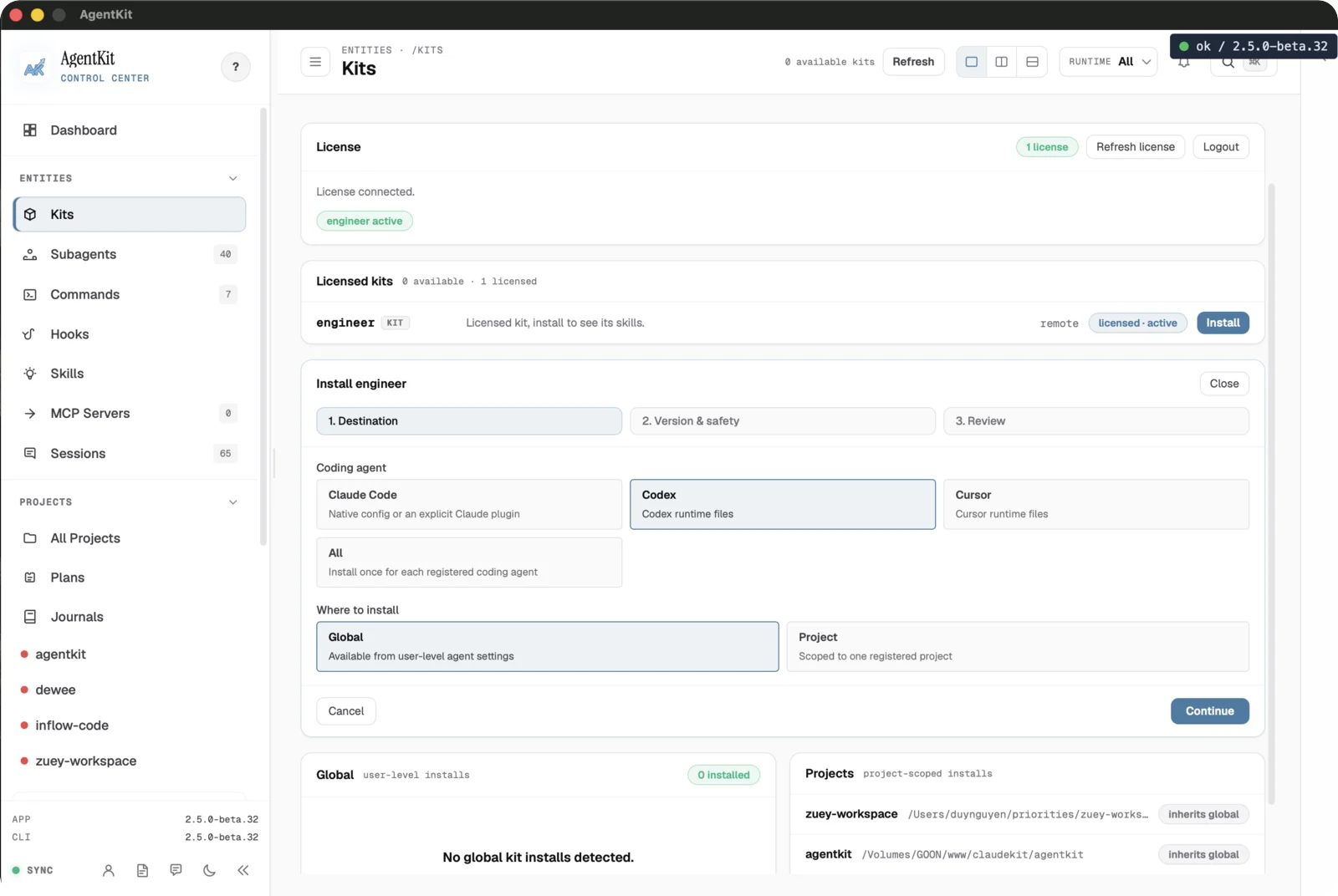
The Kits page shows your license state, licensed and available Kits, and existing global and project installs. The Install wizard walks three steps — choose a destination (a coding agent, or all registered agents; global or a single project), review version and safety, then confirm.
Kit removal is a CLI workflow, not a Desktop action. Preview it before confirming
with --yes.
Read Subagents
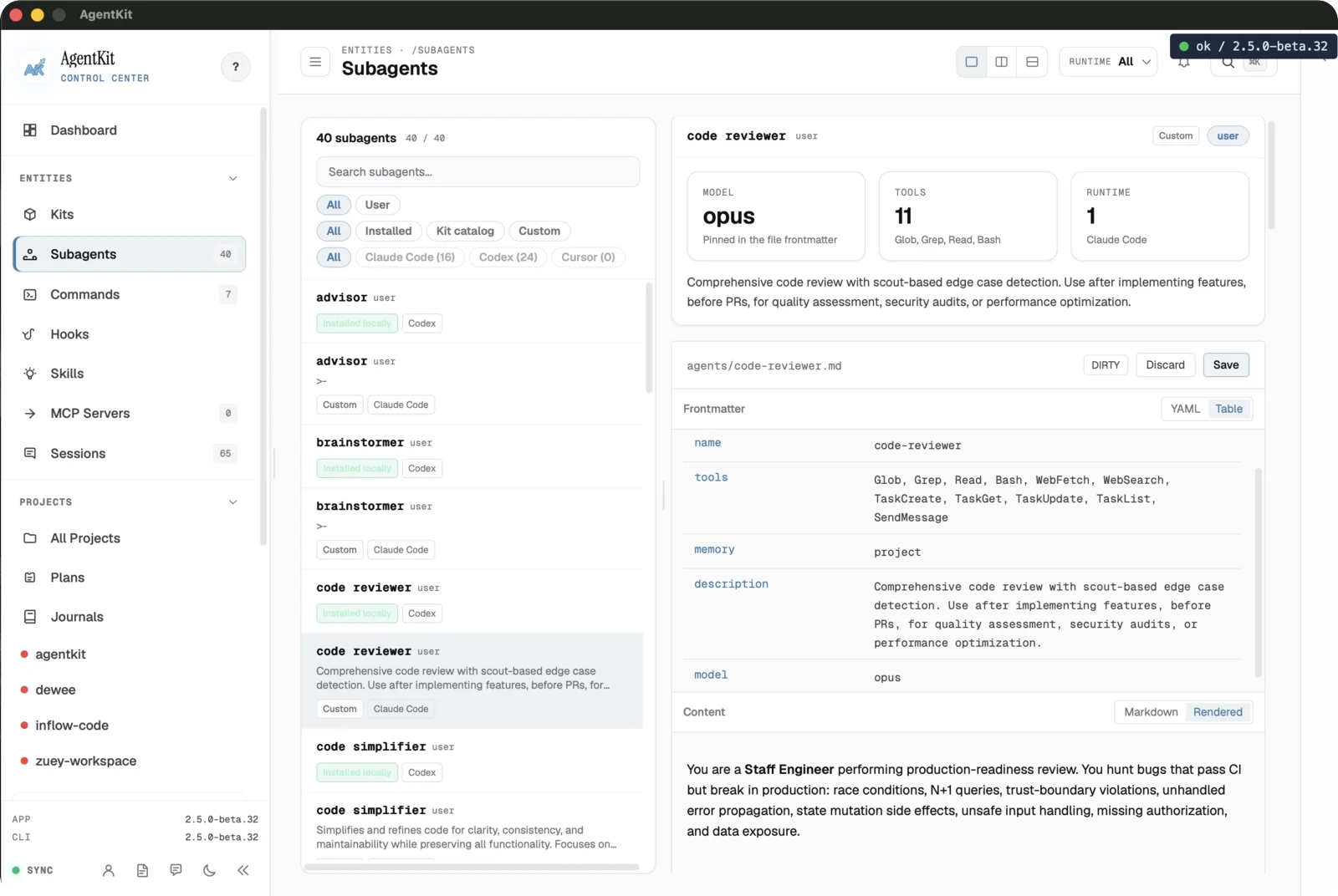
Subagents lists every agent AgentKit sees, with filters for source, install state, and runtime. The detail pane shows the agent's model, tool grants, and runtime, plus its frontmatter and rendered instructions.
The detail pane's Recent use panel lists up to 20 recorded sessions that
delegated to the agent, newest first, with the project, date, and call count
when the session called it more than once; select one to open the session.
Delegation is read from Task/Agent tool calls whose subagent_type names the
agent. If some projects' sessions could not be read, the panel says the count
may be low.
This surface is read-only: it inspects the agent definition. Launch the agent from its coding assistant, not from here.
Browse Commands
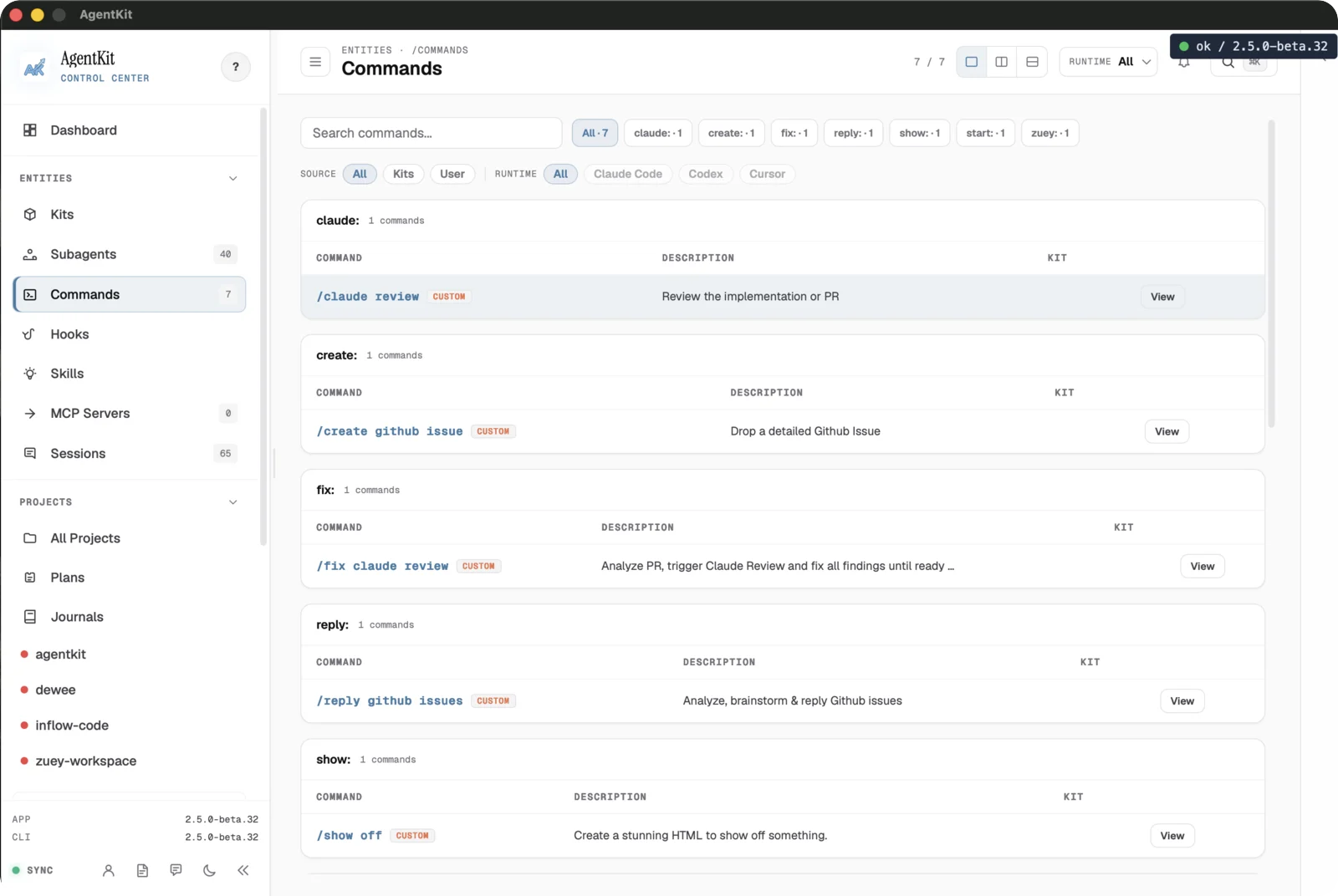
Commands groups every registered command by its source, with the description and owning Kit for each. Use search and the source/runtime filters to find one, then View its definition.
The Invocations column and the detail pane's Command usage panel show how
many times each command ran in the last 30 days, counting repeats within one
session. The count is an estimate parsed from the command tag Claude Code
records when a slash command runs, and an invocation recorded under a namespace
the catalog entry does not carry is not matched, so that command can show 0.
Like Subagents, this is an inspector. Running a command happens in the coding assistant that owns it.
Check Hooks in the harness
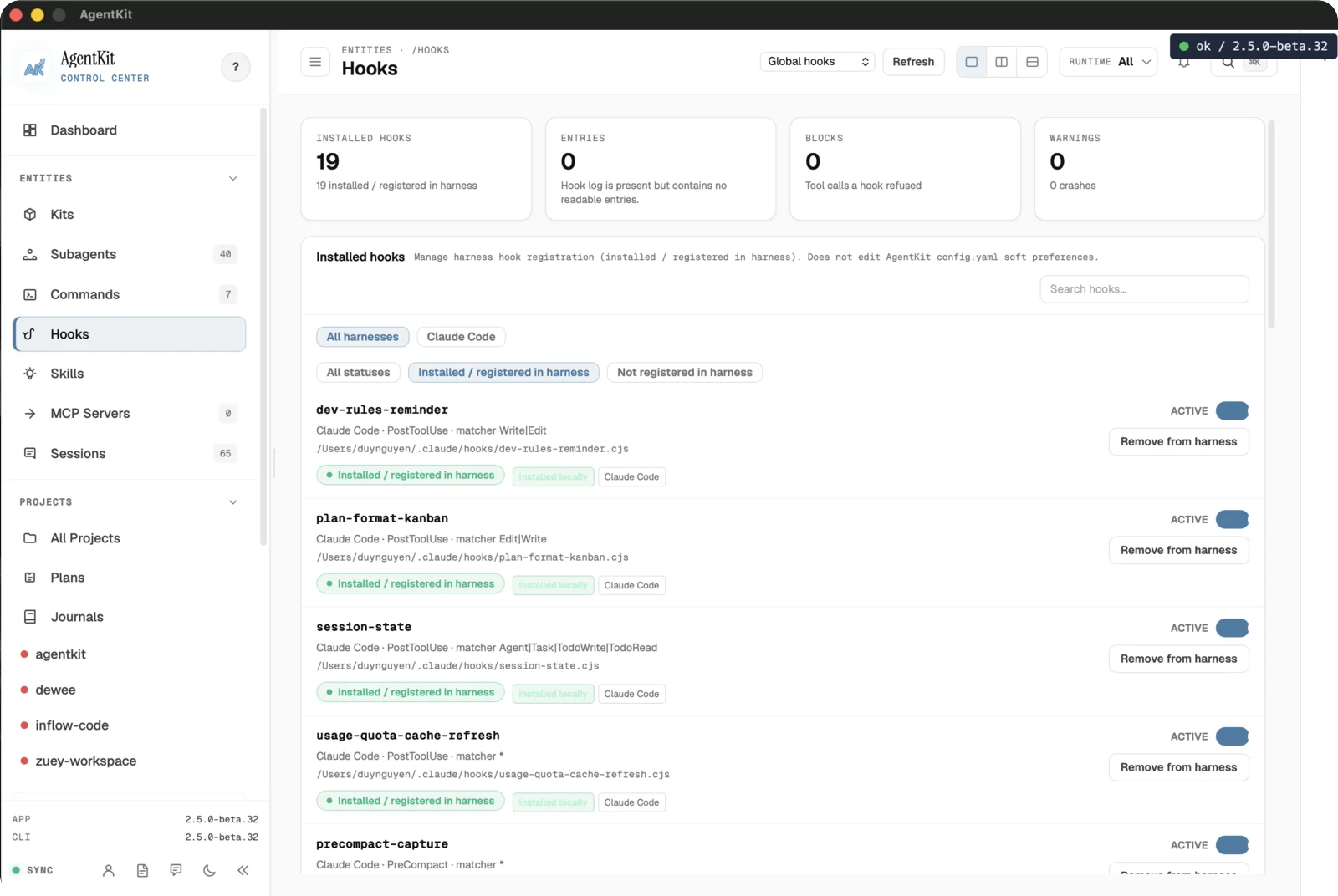
Hooks shows how many hooks are installed versus registered in the harness, plus blocks and warnings. Each row lists its matcher and lets you toggle Active or Remove from harness.
Desktop manages harness registration here; it does not edit the soft hook
preferences in config.yaml. Review the matcher before changing a hook's state.
Inspect Sessions
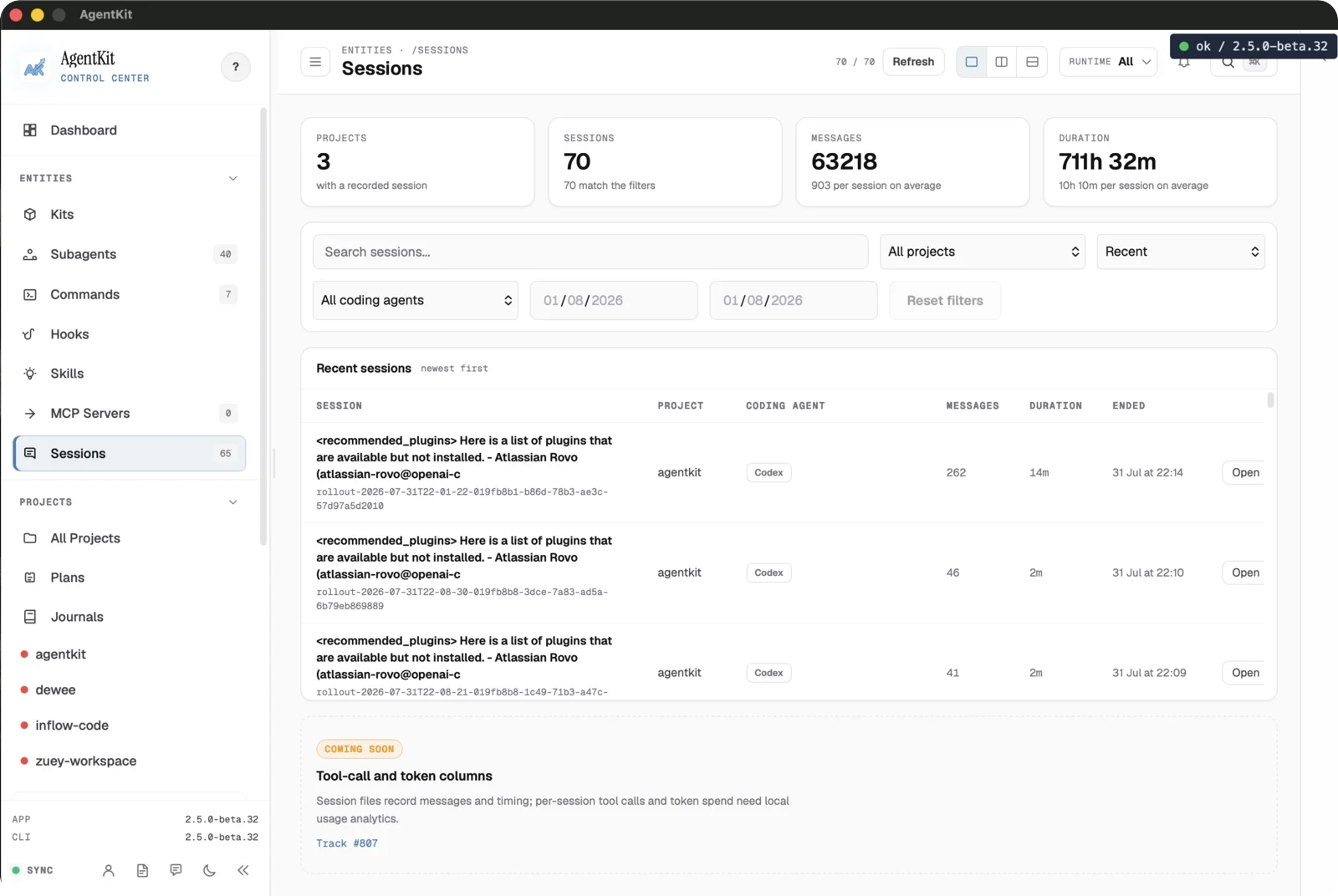
Sessions summarizes recorded Claude Code and Codex work — project, session, and message counts, durations, and a searchable recent-sessions table. Open a row to inspect its evidence.
The table includes Tool calls and Tokens columns for each session. A session's detail shows a Token usage tile with the input, output, cache, and reasoning split. It totals the whole main transcript, not tokens spent by delegated subagents; those appear in the Dashboard's Tokens by subagent panel. The Subagents spawned, Tool calls by type, and Errors in session panels count only the messages on the page you are viewing, by design. These figures are derived on this machine from local session transcripts and the session index; AgentKit sends no telemetry for them.
Desktop is a session inspector, not a launcher, and it reads only supported session sources.
Verify MCP servers
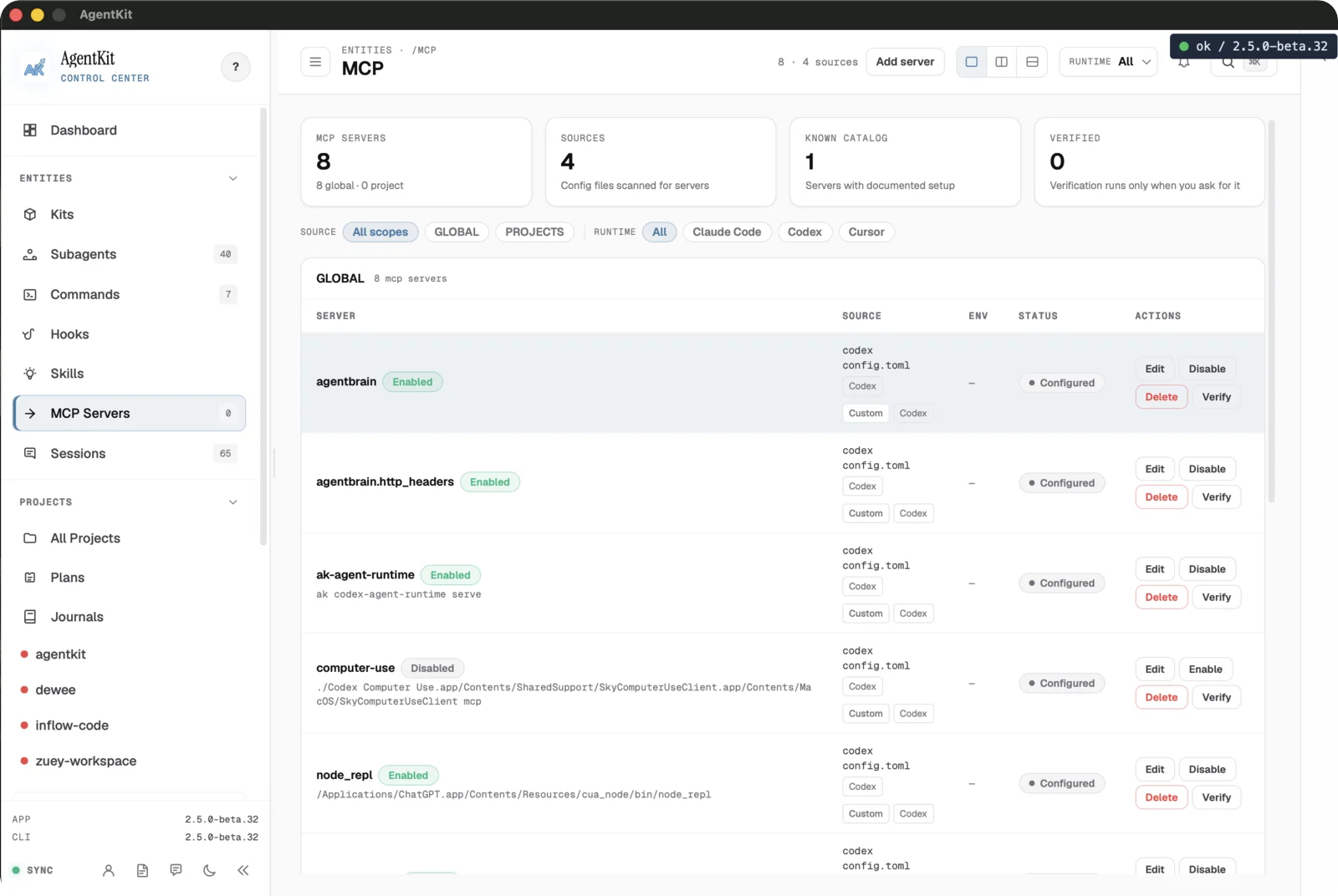
The MCP surface lists configured servers, the config files they came from, the
known catalog, and how many are verified. Each server shows its source
config.toml, scope, and status, with Edit, Disable, Verify, and
Delete actions.
Verification runs only when you ask for it. Preview any configuration change before applying it, because it can alter the target runtime's setup.
Next, see how projects and plans are organized in Projects and plans.