
Desktop app
Projects and plans
Register projects, read a project dashboard, and track plans and journals from the AgentKit Desktop app.
The Projects group covers per-project state: the registered projects themselves, each project's dashboard, and the plans and journals stored under a project. After this page you will know how Desktop presents project work and what each view owns.
Review registered projects
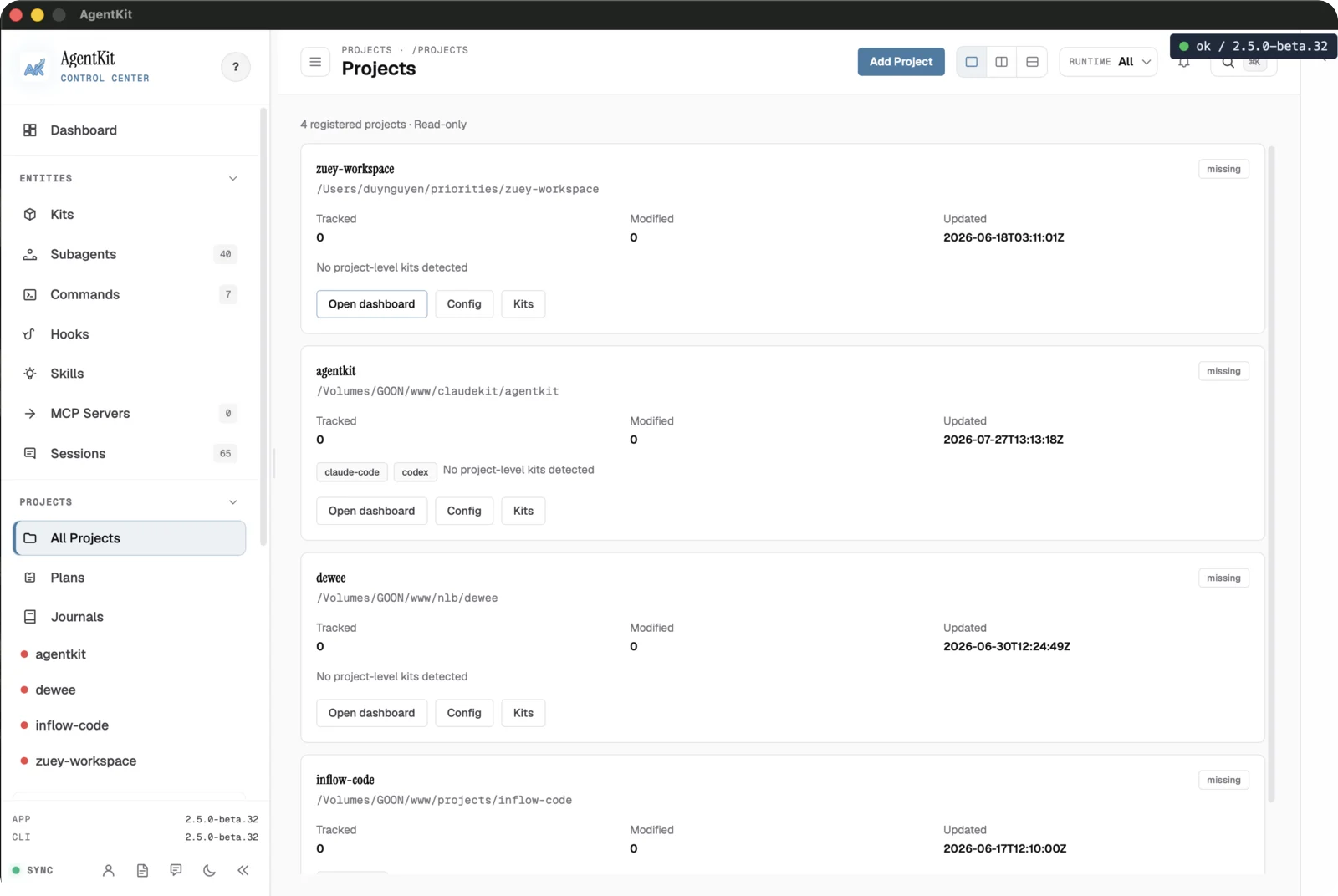
All Projects lists every registered project with its tracked path, modified and updated times, and detected Kit state. Use Add Project to register a local directory, or open a project's dashboard, config, or Kits from its row.
This list is read-only over the project files. Removing a project removes its AgentKit registry entry, not the project directory on disk.
Open a project dashboard
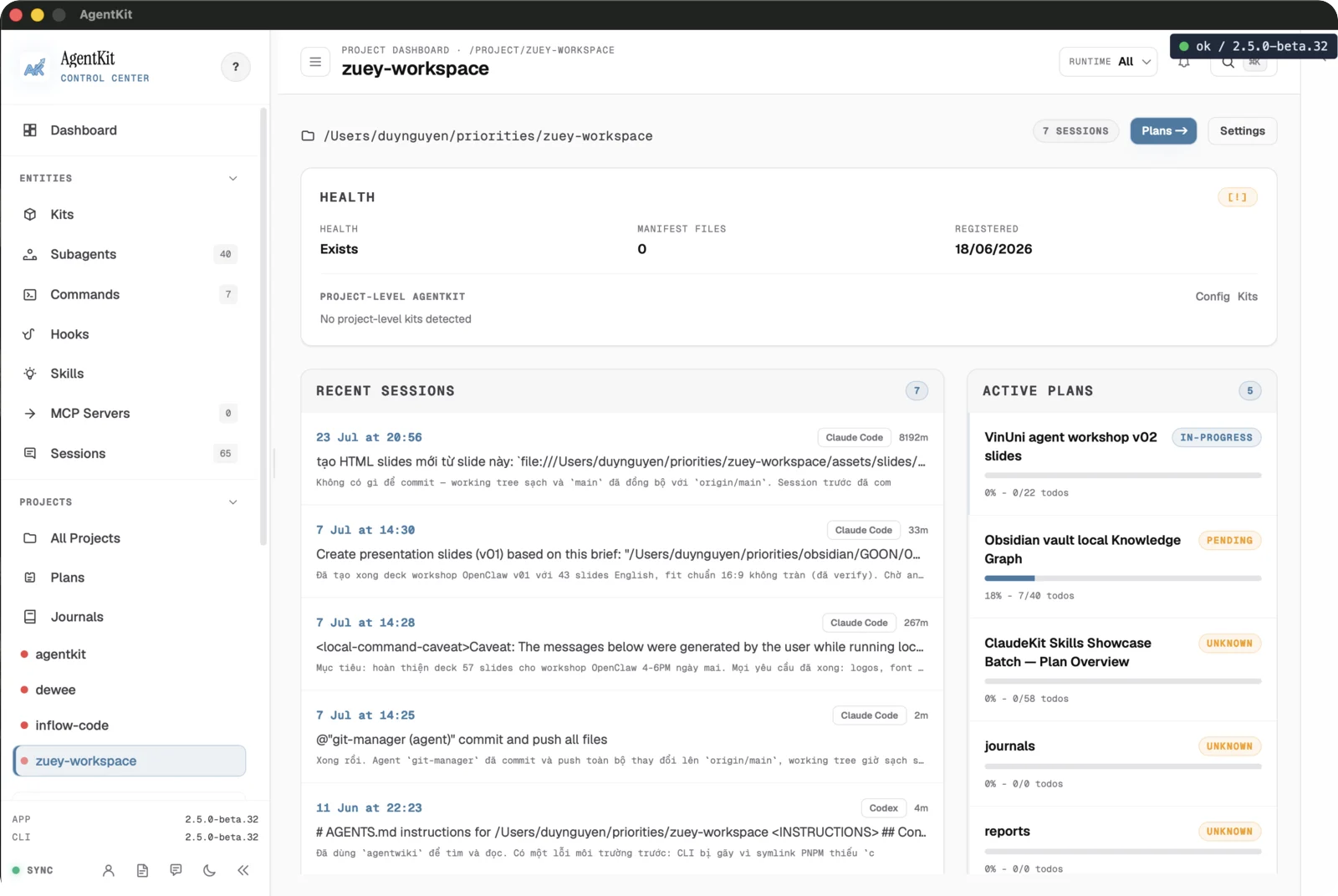
Selecting a project opens its dashboard: health and manifest state, when it was registered, recent sessions, and active plans with their progress. Project-level Kit installs and config are reachable from here.
The dashboard reads project state; it does not modify the project's own files. The one exception on these pages is moving a card on the Plans board, which writes that plan's status.
If .agentkit/config.yaml sets a safe, project-relative paths.plans, Desktop
uses that directory for plan and journal discovery instead of plans/. The same
location is used by ak plan and ak journal, so their list, detail, reindex,
and migration results stay aligned with these views. An absent, malformed,
outside-project, linked, or absolute value falls back to the project's default
plans/ directory; Desktop does not use this setting to browse arbitrary
absolute locations.
Track plans on the board
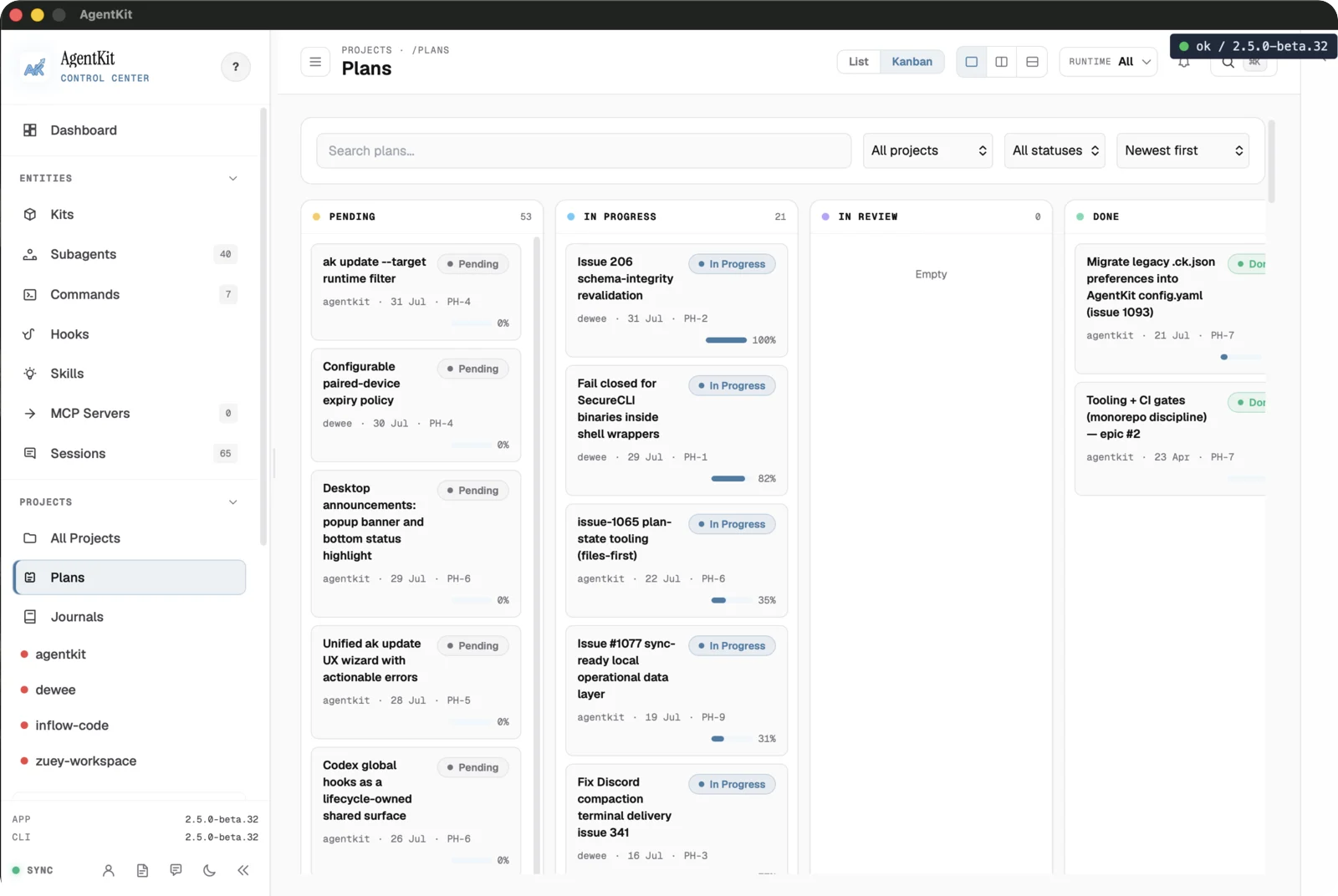
The Plans board groups plans by status — Pending, In Progress, In Review, Done, and Cancelled — with per-card progress. It gives a quick read of what is moving without opening each plan.
In the Desktop app, dragging a card to another column writes that status into
the plan's plan.md front matter, the same values ak plan update --status
accepts. The card moves at once and moves back with an error if the write
fails. In Review is display-only and does not accept drops. In the browser
dashboard the board is read-only.
Scan plans as a list
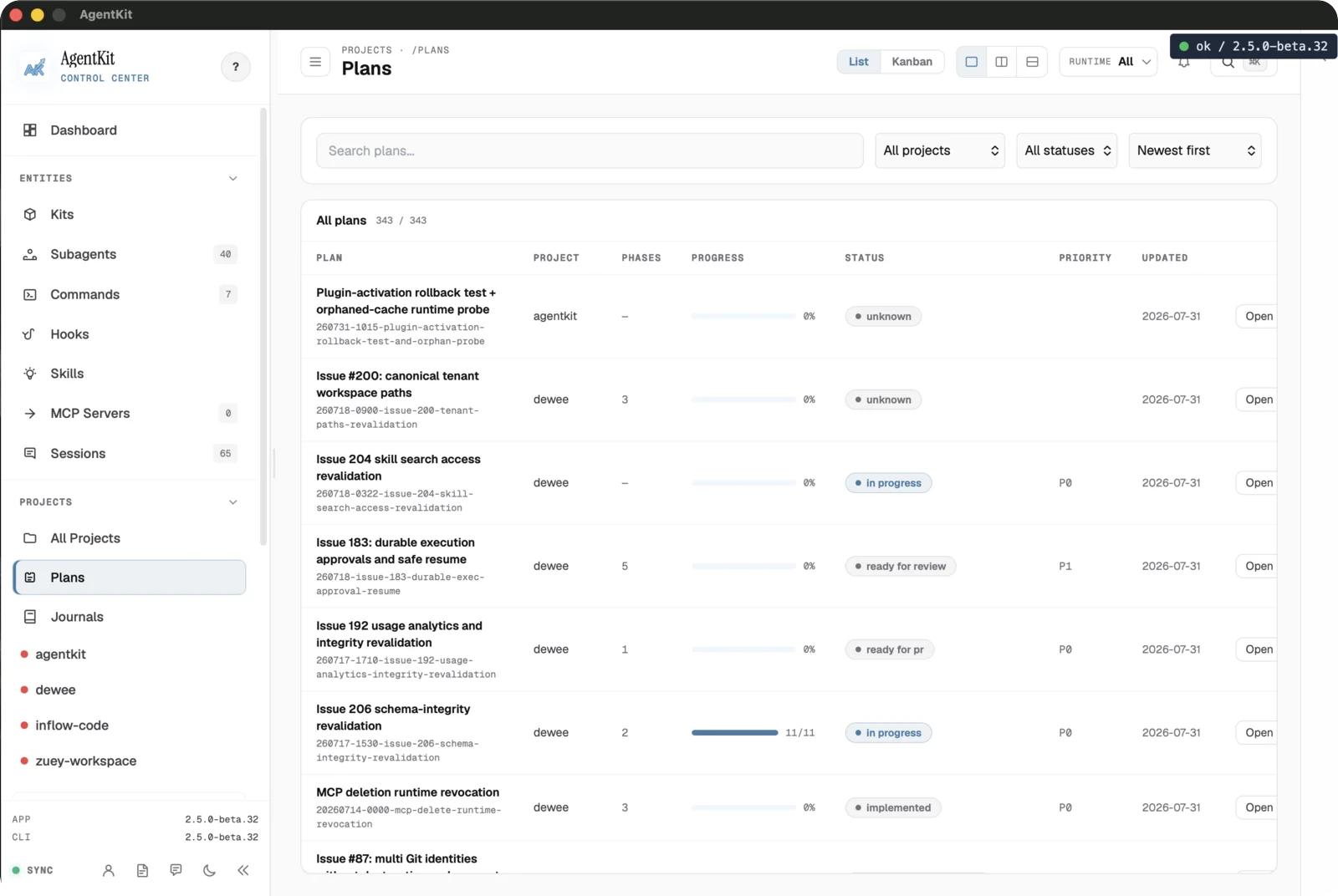
The list view shows the same plans as a table with project, passes, progress, status, priority, and last-updated columns. Use it to sort and compare many plans at once, then open one for detail.
Read a plan in detail
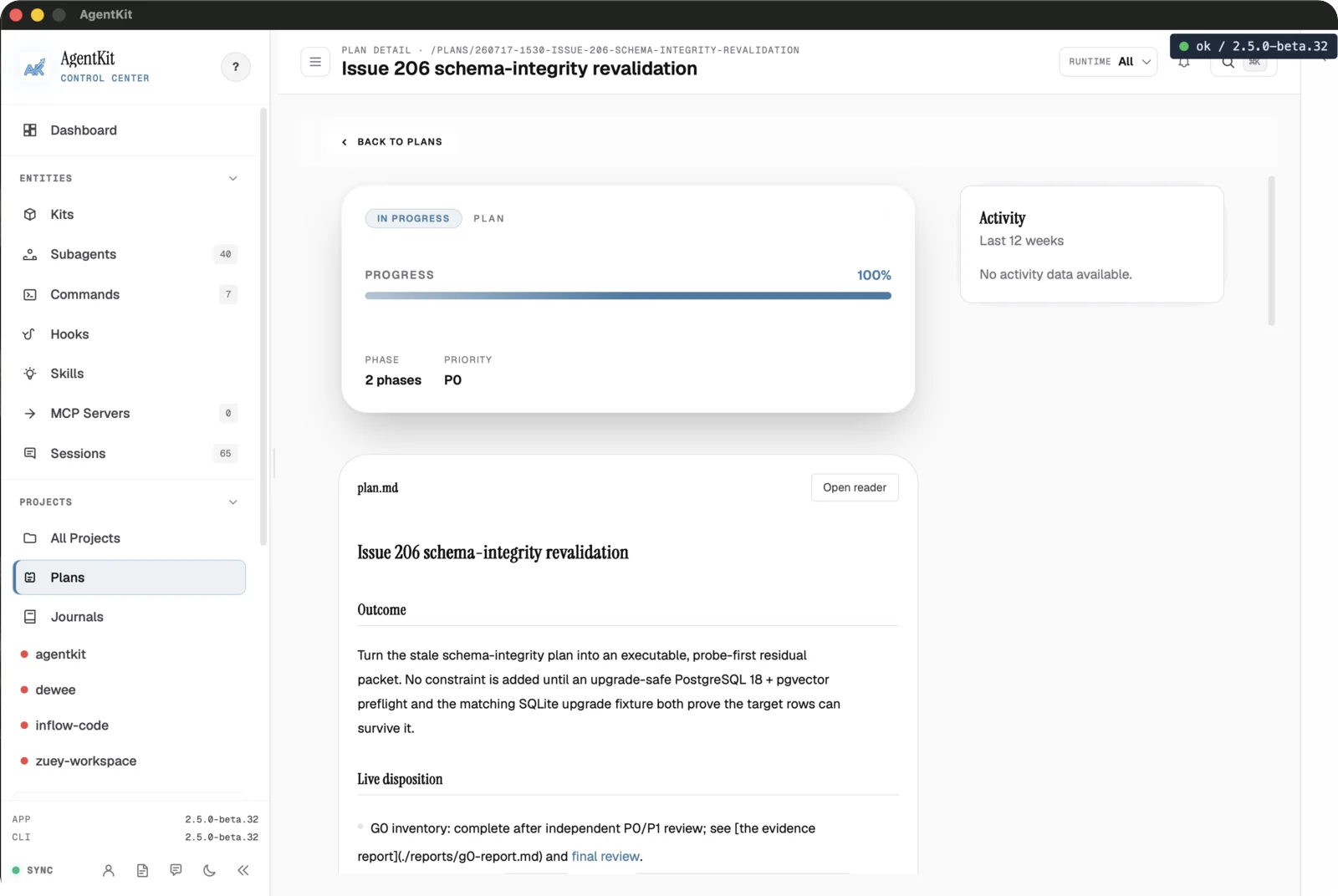
A plan's detail view shows its phase and progress summary, an activity strip, and a reader for the plan document itself. Use it to follow a plan's outcome, phases, and disposition without leaving Desktop.
Browse journals
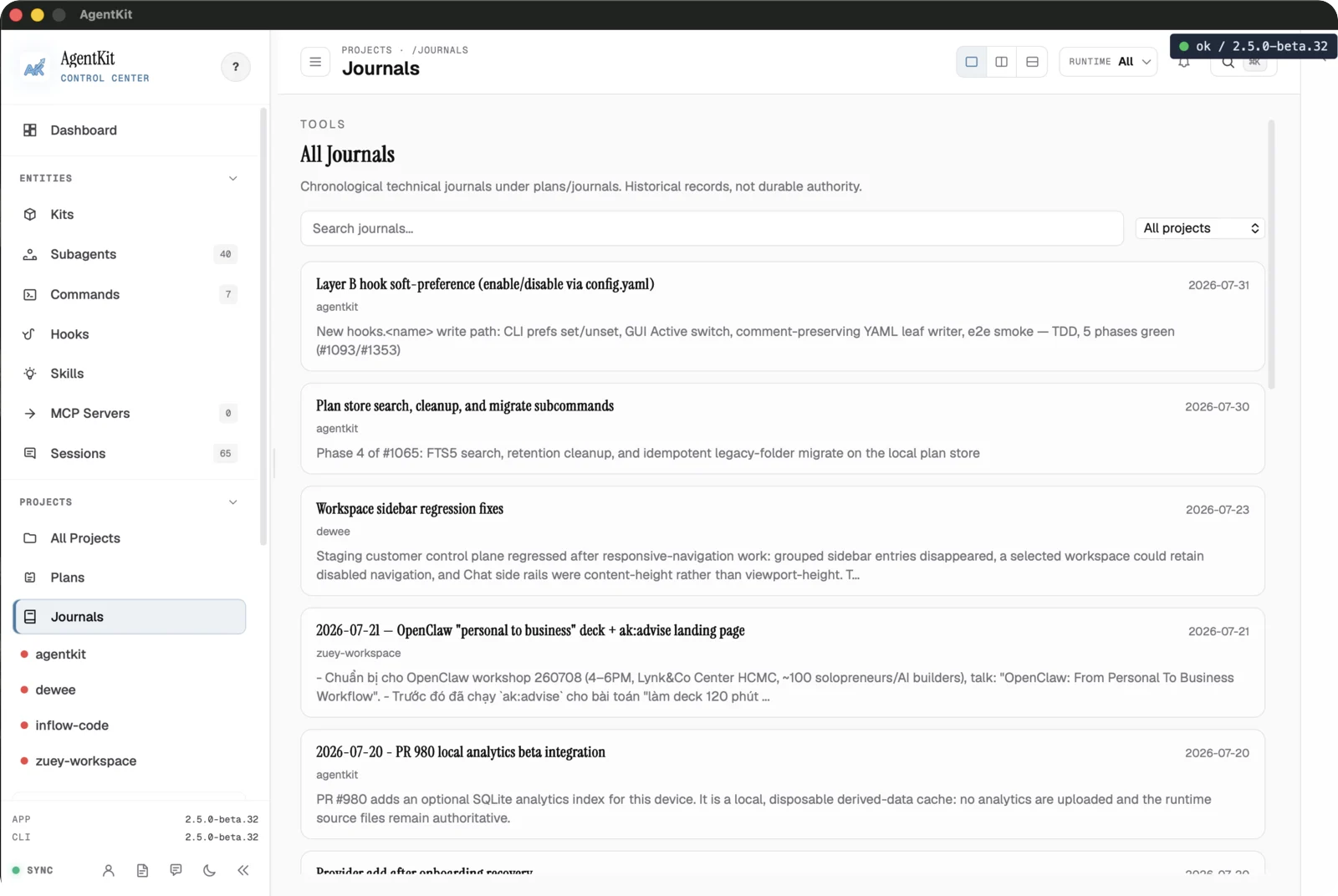
Journals lists chronological technical entries stored under a project's journal folder. They are historical records, not durable authority, so read them as a log of what happened rather than the current source of truth.
Next, cover the app-level surfaces in Settings and system.
Managing entities
Browse and inspect the AgentKit building blocks in Desktop — Kits, Subagents, Commands, Hooks, Sessions, and MCP servers.
Settings and system
Configure the AgentKit Desktop app, manage the local analytics index, read local usage limits and insights, design a status line, send feedback, and migrate providers.